
JJSplit Free Download – Complete Guide to File Splitting and Joining
Introduction
In today’s digital world, managing large files has become a common challenge. Whether you are trying to send a big video file through email, transfer data across limited storage devices, or simply organize your files more efficiently, large file sizes can create real headaches. This is exactly where JJSplit comes in. JJSplit is a free, simple, and highly reliable file splitter and joiner tool that has been helping users manage oversized files for years. In this guide, we will walk you through everything you need to know about JJSplit — what it is, how it works, how to download it safely, and how to make the most out of its features.
What is JJSplit?
JJSplit is a lightweight software utility built specifically for splitting large files into smaller, more manageable pieces and then rejoining those pieces back into the original file without any data loss. The program is completely free to use and does not require a paid subscription or license. It is designed with simplicity in mind, making it accessible to both technical and non-technical users alike.
Unlike many modern applications that come loaded with unnecessary features, toolbars, and bloatware, JJSplit focuses on doing one job and doing it well. Its clean interface makes the process of splitting and joining files straightforward, even for first-time users.
Why Do You Need a File Splitter?
Before diving deeper into JJSplit, it helps to understand why file splitting tools are necessary in the first place. Here are some common real-life situations where splitting a file becomes essential:
Email Attachments: Most email providers limit attachment sizes to around 25 MB. If you need to send a 500 MB video, splitting it into smaller parts makes it possible.
USB and Storage Limitations: Some older USB drives or memory cards use FAT32 formatting, which does not support files larger than 4 GB. Splitting a file solves this problem instantly.
Slow Internet Connections: Uploading or downloading a single massive file on a slow connection can be risky. If the connection drops, you lose all progress. Splitting into parts allows you to resume more easily.
Cloud Storage Sharing: Certain cloud platforms restrict the size of individual files you can upload. Splitting makes sharing possible without upgrading your plan.
Key Features of JJSplit
JJSplit may be simple, but it comes packed with the features that matter most:
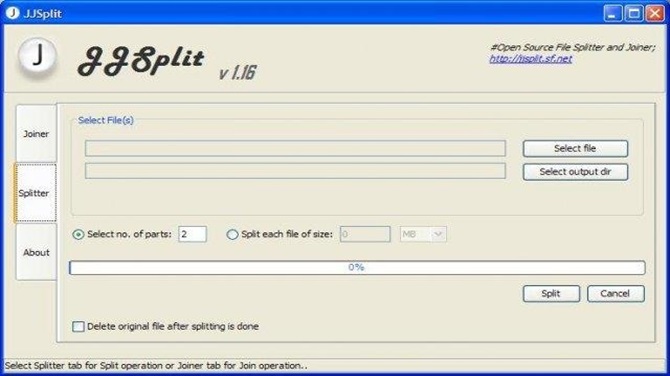
- File Splitting: You can split any file — videos, compressed archives, software installers, documents, or any other format — into parts of your chosen size. You have full control over how large or small each chunk should be.
- File Joining: Rejoining split files is just as easy. Simply point JJSplit to the first part of the file and it automatically detects and merges all remaining parts in the correct order.
- Portable and Lightweight: JJSplit has a very small file size and can run without installation. You can carry it on a USB drive and use it on any Windows computer without leaving traces behind.
- No Data Loss: The splitting and joining process is lossless, meaning your files are restored exactly as they were originally — no corruption, no missing data.
- Wide File Compatibility: JJSplit works with every file type. It does not care whether you are splitting an MP4 video, a ZIP archive, an ISO disk image, or a PDF document.
- Completely Free: There are no ads inside the application, no premium version to upgrade to, and no time-limited trial. JJSplit is genuinely free.
Step-by-Step: How to Use JJSplit
Splitting a File:
- Open JJSplit on your computer. Navigate to the Split section.
- Click Browse and select the file you want to split.
- Enter your preferred chunk size (for example, 50 MB or 100 MB per part).
- Choose the output folder where the parts will be saved.
- Click the Split button and wait for the process to complete.
Joining Files:
- Open JJSplit and go to the Join section.
- Click Browse and select the first part of your split file (usually ending in .001 or part1).
- Make sure all other parts are in the same folder.
- Click the Join button.
- JJSplit will combine all parts and restore the original file.
Tips for Best Results
- Always keep all split parts in the same folder before joining.
- Do not rename the individual parts, as JJSplit relies on the original naming sequence.
- If you are sharing split files with someone else, let them know they will also need JJSplit or a compatible tool to rejoin the files.
- Double-check the output file after joining to make sure it opens correctly before deleting the
Alternatives to JJSplit
While JJSplit is excellent for basic needs, here are a few alternatives worth knowing:
HJSplit – Very similar to JJSplit, also free, and available on multiple platforms including Linux and Mac.
GSplit – Offers more advanced splitting options and custom self-joining executables.
7-Zip – A free compression tool that also supports splitting files into volumes while compressing them.
Final Thoughts
JJSplit is one of those tools that deserves a permanent spot in your digital toolkit. It is free, reliable, easy to use, and does exactly what it promises. Whether you are a student sharing large project files, a professional transferring data between systems, or just someone trying to email a large video to a friend, JJSplit makes the process simple and stress-free. Download it from a trusted source, follow the steps above, and you will have complete control over your large files in minutes.