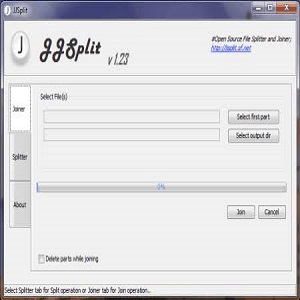
JJSplit Free Download is a lightweight tool that does exactly that. In this JJSplit free download guide, you’ll learn what the program is, how to get it safely, how to split and join files step by step, and what to do when something goes wrong.
What Is JJSplit?
JJSplit is a free file splitter and joiner written in Java. You give it a large file and tell it how big each piece should be, or how many pieces you want. It cuts the file into numbered parts. Later, you or the person you sent the parts to can run them through the same program and get the original file back.
The project is listed on SourceForge under a public domain license. The program is tiny, well under a megabyte. There’s no installer, no registry clutter, and no subscription, so you can keep it on a flash drive and run it on any computer that has Java.
Parts created by JJSplit end in .v1, .v2, .v3, and so on. The joiner also understands the popular .001, .002 style, so it can rebuild files that were split with other tools such as HJSplit.
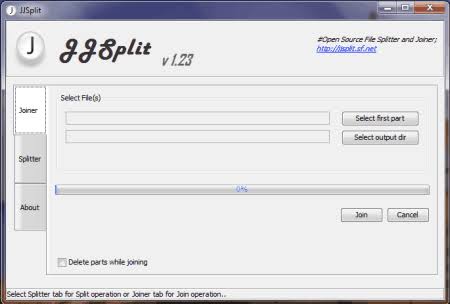
JJSplit Free Download Main Features:
- Two ways to split: choose a fixed size for each piece, or set the number of pieces and let the tool work out the sizes.
- Quick joining: you can start a join by double-clicking the parts, which helps when you’re sending files to someone who isn’t tech-savvy.
- Delete as you go: an optional setting removes each part once it has been merged, which keeps disk usage under control.
- Support for
.001parts: files split by other popular tools can be joined too. - Portable and cross-platform: it runs on Windows, Linux, and macOS as long as Java is installed.
- Multithreaded: the developer built it to work quickly with large files.
Why Split a File in the First Place?
Here are the situations where splitting really helps:
- Attachment limits. Many email services cap attachments at around 25 MB, and plenty of upload sites and chat apps have limits of their own.
- FAT32 drives. A USB stick formatted as FAT32 can’t store a single file larger than 4 GB, even if the drive is 64 GB.
- Shaky internet. If a 10 GB upload fails at 95%, you start over. With 100 MB parts, you only retry the piece that failed.
- Small storage spaces. A large backup can be spread across several small drives or shared folders.
- Easier sharing. Game mods, video projects, and disk images are simpler to hand over in manageable chunks.
JJSplit Free Download: How to Get It Safely
1. Check that Java is installed. JJSplit needs the Java Runtime Environment. Open Command Prompt and type java -version. If a version number shows up, you’re ready. If not, install Java first.
2. Download from the official project page. Look for the JJSplit project on SourceForge, where the current release is listed as version 1.23. Avoid random “free download” sites that wrap the file in an installer with extra software.
3. Scan the file. Run it through your antivirus, or upload it to a multi-engine scanner like VirusTotal before opening it. It takes a minute and is worth doing for any utility you download.
4. Give it a home. Because the program is portable, just place it in its own folder, such as and you’re done.
How to Split a File with JJSplit
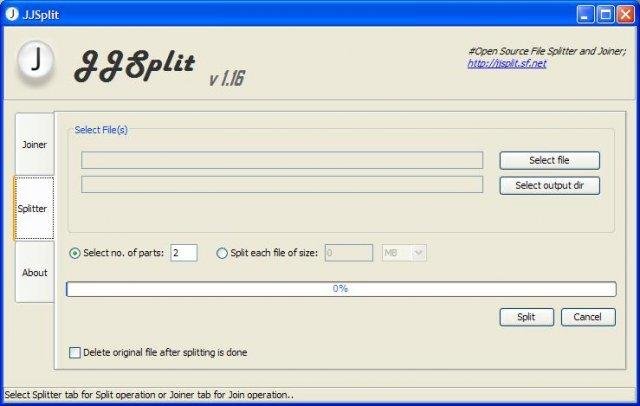
- Launch JJSplit. Some reviewers have noticed it opens on the Join tab first, so switch to the Split tab.
- Select the file you want to break up.
- Choose the piece size or number of parts. For email, stay under the attachment limit. For FAT32 drives, stay under 4 GB. For uploads, follow the website’s rule.
- Pick a destination folder. A fresh, empty folder keeps things tidy.
- Start the process and wait. Big files can take a few minutes, depending on your disk speed.
- Check the result. You should see numbered parts (
.v1,.v2, and so on) in the folder. Their combined size should roughly match the original.
One thing to keep in mind: splitting doesn’t compress anything. A 4 GB file becomes pieces that add up to about 4 GB.
How to Join Split Files Back Together
- Put every part in one folder. All of them, with their names untouched.
- Open JJSplit and go to the Join tab.
- Select the first part (
.v1or.001). - Decide about deleting parts. The delete-as-you-go option saves space, but use it only if you have a backup, because deleted parts are gone for good.
- Start the join. When it finishes, you’ll find the rebuilt file with its original name.
- Verify it. Open the file and compare its size with the original. For important files, compare checksums. On Windows, run this in Command Prompt on both files:
If the two hashes match, the file is identical.
Tips to Avoid Corrupted or Missing Parts
- Never rename parts or change extensions. The joiner relies on the naming pattern.
- Send a short note with the parts. Mention how many there are and the original file size, so the receiver can spot a missing piece quickly.
- Don’t mix parts from different splits. Keep each file’s parts in a separate folder.
- Leave enough free space. Joining needs room for the full file, unless you use the delete-as-you-go option.
- Keep the original until you’ve verified the joined file.
Common Problems and Quick Fixes
- The program won’t open. Java is probably missing or outdated. Install or update it and try again.
- The joined file is corrupted or won’t open. A part is likely missing, incomplete, or renamed. Re-download the suspect part.
- The join stops with a space error. Free up disk space equal to the size of the full file, or use the delete option.
- Your antivirus complains. Small, unfamiliar utilities sometimes trigger warnings. Re-download from the official source and scan again. If you’re still unsure, don’t run it.
JJSplit vs. HJSplit vs. 7-Zip
| Tool | Part naming | Good for | Worth knowing |
|---|---|---|---|
| JJSplit | .v1, .v2 (joins .001 too) |
Quick, portable splitting | Needs Java |
| HJSplit | .001, .002 |
A widely recognised format | Has a checksum feature |
| 7-Zip | .001, .002 volumes |
Splitting plus compression | File Manager has Split and Combine options |
No splitting software on hand? For plain style parts, Windows Command Prompt can stitch them together:
On Linux or macOS, this does the same job:
This works for plain byte-slice parts. If you’re not sure how the pieces were created, use the tool that made them.
JJSplit Free Download Frequently Asked Questions
Is JJSplit really free?
Yes. It’s listed on SourceForge as public domain software, with no fees or paid tiers.
Does JJSplit work on Windows, Mac, and Linux?
It’s Java-based, so it runs on any of them as long as a compatible Java runtime is installed.
Does splitting make a file smaller?
No. The parts add up to the same size as the original. If you also want compression, use an archive tool like 7-Zip.
Can JJSplit join files split with HJSplit?
It supports .001 and .002 parts, so files split that way can generally be joined.
Is splitting the same as encrypting?
No. Anyone who has all the parts can join them. If privacy matters, encrypt the file before you split it.
What if one part is missing?
The joined file will be incomplete or broken. You’ll need the missing part again, because the tool can’t rebuild it.
Can I split any file type?
Yes. Videos, ISO images, documents, backups, and archives all work. You’ll need to rejoin the parts before using the file.
Final Thoughts
JJSplit isn’t flashy, and it doesn’t compress or encrypt anything. What it does is take a file that’s too big for the job and cut it into pieces you can send, store, and reassemble later. If you move large files even occasionally, a JJSplit free download is a small addition to your toolkit that can save you a lot of trouble. Just download it from the official page, keep your parts together, and verify the result.