JJSplit Review I recently had to send a 4GB video file to a friend who was stuck with a painfully slow, data-capped connection. Email was out of the question, cloud upload was going to take forever on my end too, and I didn’t want to install some bloated software just for a one-time job. After digging through a few old forum threads, one name kept coming up again and again: JJSplit. I’d never actually used it before, so instead of trusting a random “top 10 file splitters” listicle, I decided to just try it myself. Here’s what actually happened.
What JJSplit Actually Is
JJSplit Review is a free, no-frills tool that does one thing: it breaks a large file into smaller chunks, and later glues those chunks back into the original file. No subscription, no account creation, no “upgrade to pro” popups every five minutes.
It’s also been around for a long time, and honestly that made me a little nervous going in. A tool that hasn’t been touched in years usually means one of two things — either it’s so simple it never needed updating, or it’s abandoned and quietly broken. I wanted to find out which one it was before recommending it to anyone.
Why I Needed to Split the File in the First Place
A few common situations push people toward a file splitter, and mine checked more than one box:
- My friend’s connection kept dropping mid-download on anything over 1GB, so smaller chunks meant she could resume without starting over.
- I wanted a backup copy on a couple of old USB drives that were formatted in FAT32, which flat out refuses to store a single file bigger than 4GB.
- Some of the free upload services I looked at capped individual files at around 2GB.
So splitting the 4GB file into smaller pieces wasn’t just convenient, it was actually necessary for at least two of those reasons.
JJSplit Review Downloading and Setting It Up
This is where JJSplit already won a point with me. The download was tiny, well under a couple of megabytes, and it’s a portable program, meaning there’s no installer, no wizard asking me to agree to bundled toolbars, nothing added to my registry. I just extracted it and double-clicked the executable.
One honest caveat: Windows SmartScreen flagged it the first time I ran it, with the usual “unrecognized publisher” warning. That’s fairly normal for small, older freeware that isn’t code-signed by a big company, but it’s still worth mentioning so nobody panics when they see it. I ran a quick scan before opening it, just to be safe, and it came back clean.
JJSplit Review Actually Splitting the 4GB File
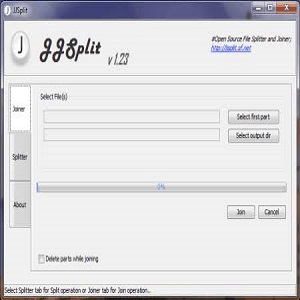
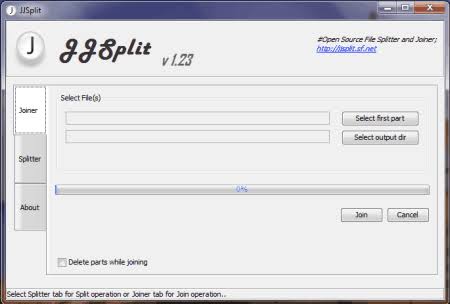
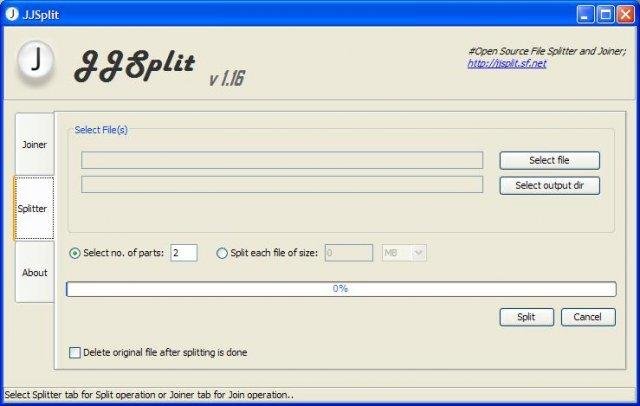
The interface looks exactly like what you’d expect from a tool that hasn’t changed its look in over a decade — plain, a bit boxy, zero animations. But it’s also dead simple, which honestly matters more to me than looking modern.
I pointed it at my video file, picked an output folder, and set the split size. I went with roughly 700MB per chunk since that comfortably fit under most upload limits I was dealing with. Then I hit split and let it run.
For a 4GB file on my machine, the whole process took somewhere around 6 to 8 minutes, which felt reasonable for something this lightweight. It wrote out the pieces one after another, and I could watch the folder filling up in real time. No crashes, no weird freezing, no fake “estimated time remaining” that lies to you the whole way through.
JJSplit Review Joining the Files Back Together
This is the part I was genuinely most nervous about, because a splitter is useless if the rejoined file doesn’t work. I copied all the parts onto my friend’s laptop, opened JJSplit again, pointed it at the first piece, and let it merge everything back into a single file.
The rebuilt file matched the original size exactly, and the video played without a single glitch or corrupted frame. That was honestly the moment I trusted the tool. Splitting is easy; rebuilding a perfect, playable copy is where a lot of cheaper or sketchier tools quietly fail.
What I Liked
- Completely free, with no watermarks, trial limits, or nagging upgrade prompts.
- Portable, so it leaves nothing behind on your system after you’re done.
- Genuinely fast for its size, even on a 4GB file.
- The rebuilt file was identical to the original, byte for byte as far as I could tell.
- It also handles the common .001, .002 style split files that other tools create, so it’s useful even if you didn’t split the file yourself.
What Bugged Me
- The interface really does look stuck in the early 2010s, so first-time users might hesitate.
- There’s no drag-and-drop, you have to browse for the file manually every time.
- No built-in encryption or password protection if you’re splitting something sensitive.
- Since it isn’t actively maintained anymore, don’t expect new features or a Mac or Linux version anytime soon.
JJSplit vs. Other Splitters I’ve Tried
I’ve used HJSplit in the past for similar jobs, and the two are honestly close cousins in terms of what they do and how basic they look. The main difference I noticed is that JJSplit felt slightly quicker on this particular file, and I didn’t run into the occasional hiccups I remembered from HJSplit years ago. I’ve also used 7-Zip’s built-in split-to-volumes feature, which works fine but adds compression overhead and extra steps if you don’t actually need archiving, just a straightforward split.
For a quick, one-off job like mine, a dedicated splitter like JJSplit felt like less overhead than firing up a full archive manager.
Is JJSplit Safe to Use in 2026?
As long as you download it from its official page rather than some random third-party download site, it should be fine. Older freeware sites are notorious for wrapping legitimate tools in extra installers full of adware. So I’d avoid downloading it from anywhere that isn’t the original source. Running a quick antivirus scan on the file before opening it is a sensible habit regardless of which tool you’re using.
JJSplit Review My Honest Verdict
For a specific, occasional job splitting a large file. It’s easier to transfer, upload, or fit on an old FAT32 drive. JJSplit does exactly what it promises without any nonsense. It’s not going to replace a proper backup tool or a compression suite if that’s what you actually need. The outdated interface won’t win any design awards. But for the narrow thing it’s built for, splitting and rejoining a file cleanly. It worked perfectly on my 4GB test file, and I’d use it again without hesitation.
JJSplit Review Frequently Asked Questions:
Is JJSplit free to use?
Yes, it’s completely free with no trial period or hidden charges.
Does JJSplit work on Windows 11?
In my experience, it ran without any issues, despite being an older, no-longer-updated program.
Can JJSplit split any type of file?
>>>>>>>>>>>>>>>>Yes, it works on the file at the byte level, so it doesn’t matter whether it’s a video, ISO, ZIP, or any other file type.
Is there a Mac or Linux version?
No official version exists for those platforms, so Windows users are the main audience.
What’s the difference between JJSplit and HJSplit?
They’re very similar in function and interface style. In my testing, JJSplit felt slightly faster, but either one will get a basic split-and-join job done.